Recommended Settings
You can adjust how your avatar moves by changing the settings.
Adjusting in the Expression menu
The items for adjusting the motion are in ExpressionsDynamic Move in the Action Menu.
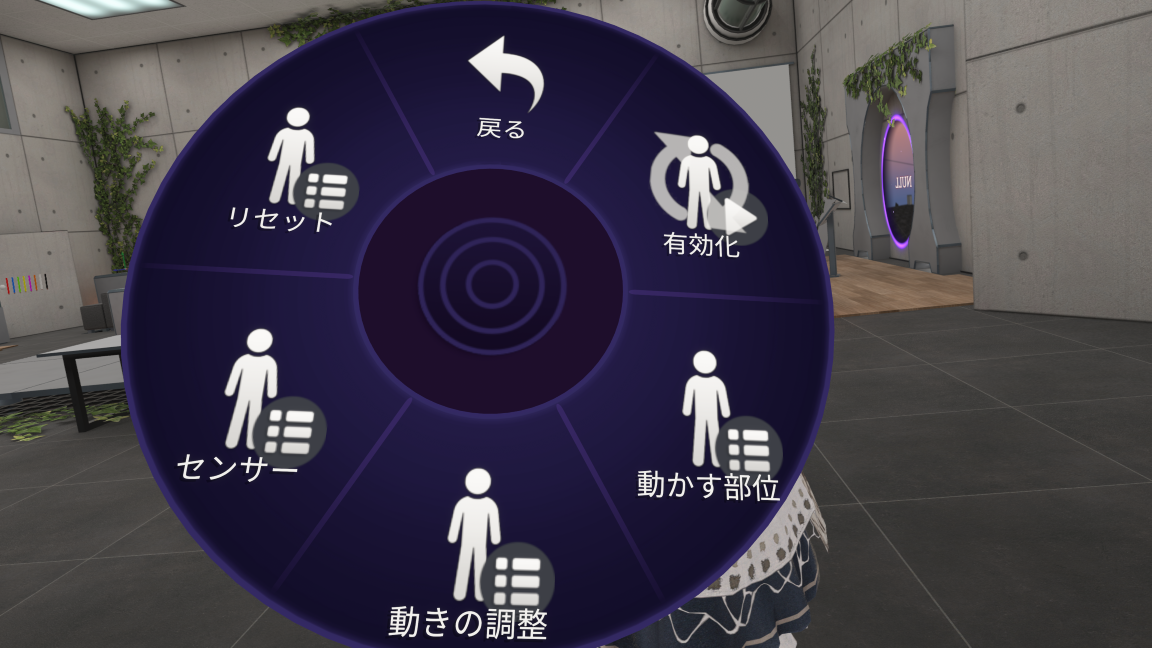
| Menu | Contents |
|---|---|
| Enabled | Turns all of Dynamic Move ON / OFF |
| Body Parts | ON / OFF for Follow Chest Left-Right / Follow Chest Up-Down / Move Lower Body / Use Lower Body Animations |
| Motion | Radials for the motion when you tilt your head left or right (Posture, Shoulder Tilt, Torso Sway, Neck Bend, Chest Shift, Hip Tilt, Knee Bend) |
| Sensor | Radials for Sensor Height / Sensor Tilt / Smoothing |
| Reset | Reset All (returns the values changed in the menu to their defaults) |
Radial values are synced and saved, so other players see the same motion, and the values remain after you reload the avatar. All values on this page are given as radial %.
Pressing Dynamic MoveResetReset All returns the values changed in the menu to the defaults from when you uploaded.
C-curve and S-curve
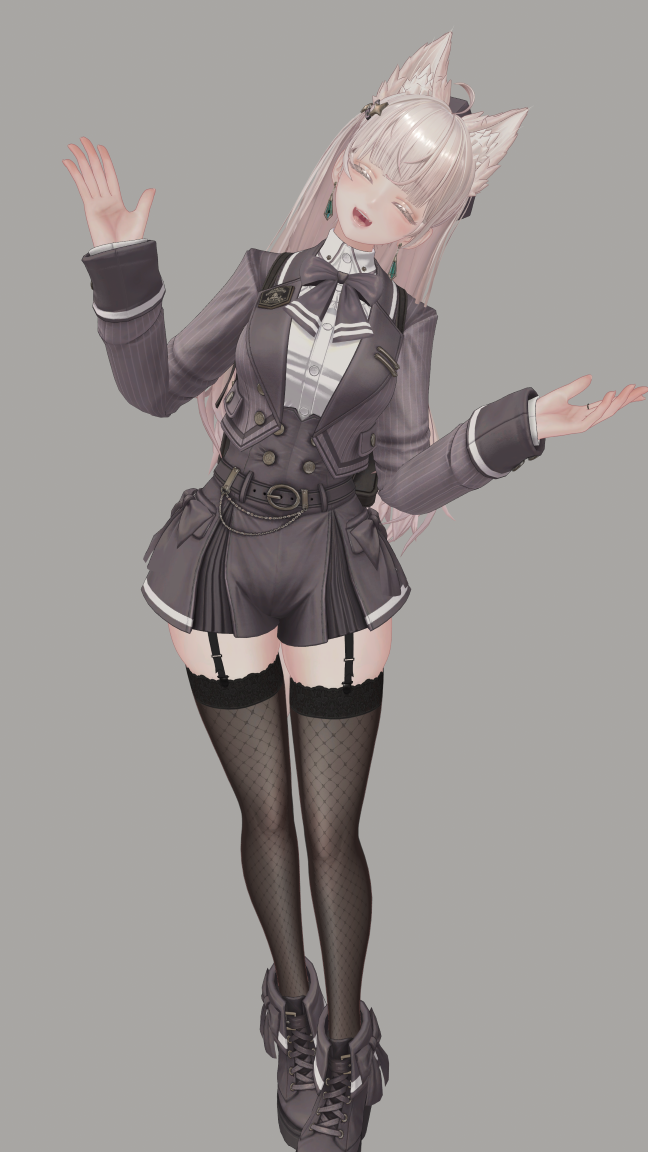
The shape of your whole body when you tilt your head left or right is set by MotionPosture. At 50% it does nothing; above that you get a C-curve, below it an S-curve.
The body shape doesn't change when you tilt your head
The chest and hips lean to the same side as the head, and the whole body bows. Soft, stable motion
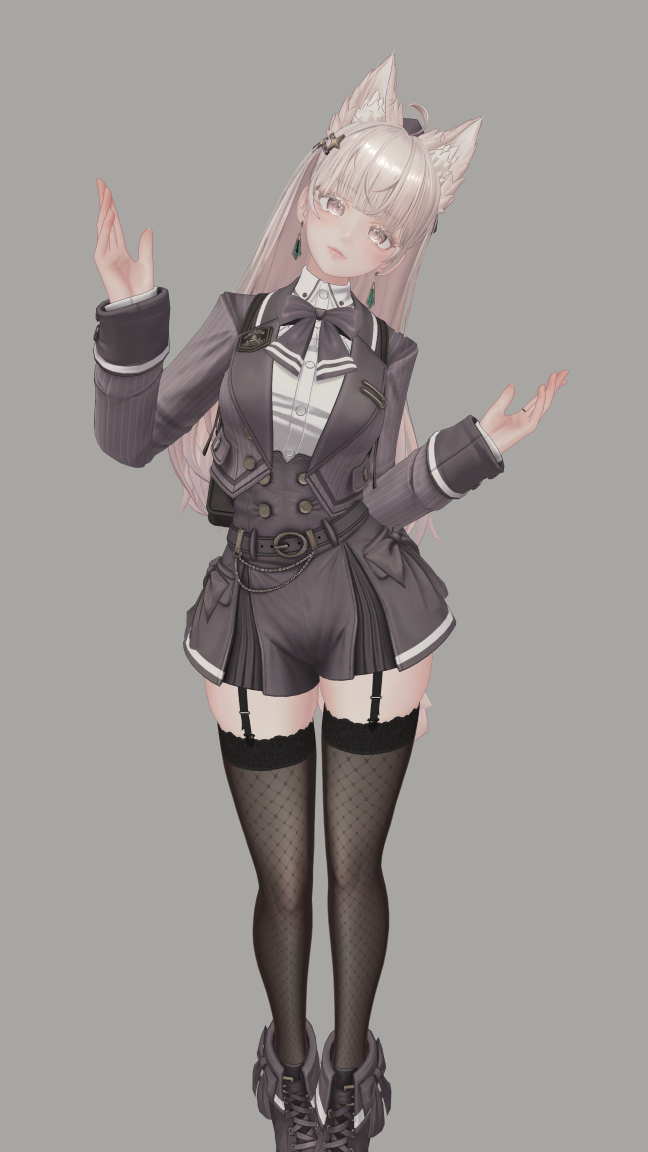
The hips and chest lean opposite to the head, and the body sways. Lively motion
Recommended C-curve settings
A calm motion to try first. It is the same as the defaults when you upload, so if you haven't changed anything, this is what you already have.
| Menu | C-curve | Notes |
|---|---|---|
| Posture | 60% | Higher makes a stronger bow |
| Shoulder Tilt | 50% | Raise it to lower the shoulder on the tilted side |
| Torso Sway | 30% | How much the body above the hips leans to the tilted side |
| Neck Bend | 30% | Higher bends more at the neck, lower bends more at the hips |
| Chest Shift | 50% | No shift at 50% |
| Hip Tilt | 50% | The hips lean to the tilted side |
| Knee Bend | 50% | Bends the knee on the side where the hip drops |
| Move Lower Body (Body Parts) | ON | When OFF, the hips and legs stay still and only the upper body moves |
| Smoothing (Sensor) | 50% | Raise it a little if the body shakes |
Try raising Torso Sway to 40–50% and Hip Tilt to 60–70%. The C-curve rarely jerks even with bigger motion.
Recommended S-curve settings
The hips move opposite to the head, and the body sways. When you lower Posture, the direction of Hip Tilt flips automatically.
| Menu | S-curve | Notes |
|---|---|---|
| Posture | 25% | Lower makes a stronger S-curve (don't go too low) |
| Shoulder Tilt | 50% | |
| Torso Sway | 30% | Brings the upper body, which moved opposite to the hips, back toward the head |
| Neck Bend | 30% | 1.2x, same as the C-curve, so the tilt shows at the neck |
| Chest Shift | 50% | |
| Hip Tilt | 75% | The hips lean opposite to the head (the direction follows Posture) |
| Knee Bend | 50% | |
| Move Lower Body (Body Parts) | ON | Needed for the S-curve hip motion |
| Smoothing (Sensor) | 50% |
With the S-curve, the body's motion amplifies the sensor reading. So if Posture is too low, the body can suddenly flip to the other side while you bring your head back upright (a jerk). The value where this starts depends on the avatar, so if you notice it, move Posture toward 50% in 5% steps. It also happens more easily when Neck Bend is too high.
The meaning of each item is explained in Adjusting the Motion.
Making your values the avatar's defaults
Values you find in the menu are saved, so you can keep using them as they are. If you want to use the same values on another avatar, or make them the values that Reset All returns to, enter the % you chose in the menu as-is into Enter as Menu % in the Unity inspector, and upload again.
If you no longer need to adjust from the Expression menu, turn off Add Tuning Menu in the Unity inspector to reduce synced parameters from 85 bits to 1 bit. For details, see Adjusting the Motion: Enter as Menu %.