Adjusting the Motion
A one-by-one guide to the settings in the Expression menu (in VRChat) and the inspector (in Unity).
How the menu and inspector relate
You can change the same settings with radials in the Expression menu inside VRChat, or in the inspector in Unity.
- Inspector values … the defaults at upload time. Reset All also returns to these values.
- Expression menu values … values you changed inside VRChat. They override the inspector values.
0–100% on a radial covers the inspector's full range. For items that include negative values (Posture, Shoulder Tilt, etc.), 50% is 0. For example, Torso Sway ranges from 0 to 60°, so 50% is 30°.
This page uses the item names of the English prefab (DynamicMove_EN). With the Japanese prefab (DynamicMove_JP), the menu and inspector item names are in Japanese.
This page uses the following markers.
Enabled and Body Parts
Enabled
Turns all of Dynamic Move ON / OFF. When OFF, all motion stops and your body moves like standard VRChat.
Follow Chest Left-Right
Twists the chest toward your head when you look left or right.
Follow Chest Up-Down
Arches the chest when you look up and rounds it when you look down.
If the chest arches or rounds while you are looking straight ahead, adjust Sensor Height.
Move Lower Body
When you tilt your head left or right, the lower body also moves with Hip Tilt and Knee Bend. When OFF, the hips and legs stay still and only the upper body moves.
Turning it OFF is handy when the leg motion bothers you, or when you are sitting.
Use Lower Body Animations
When you tilt your head left or right, uses the leg shapes set in Lower Body Animations. Turn it ON to use them.
Even when OFF, Hip Tilt and Knee Bend still apply. Not used while Move Lower Body is OFF.
Motion (when you tilt your head left or right)
The motion when you tilt your head left or right. Found in Dynamic MoveMotion in the Expression menu, and under "Motion" in the inspector.
So that small head wobbles while standing straight don't sway your body, very small tilts are ignored, and the motion eases in from there. You can adjust how it starts with Dead Zone / Ease In (inspector only).
Posture
The most important item: it sets the shape of your whole body when you tilt your head left or right.
- Above 50% (positive): C-curve … the chest and hips lean to the same side as the head, and the whole body bows.
- Below 50% (negative): S-curve … the chest and hips lean opposite to the head, and the body sways.
- 50% (0) … the body shape doesn't change.
This value also sets the direction of Hip Tilt. With the S-curve, going too low can cause jerks near the center (Troubleshooting).
Shoulder Tilt
Lowers the shoulder on the tilted side and raises the other one. Negative values reverse it.
Torso Sway
Leans the upper body toward the tilted side, pivoting at the hips. 0 disables it.
Neck Bend
Tilts the neck and head along with Torso Sway. The value is a multiplier of Torso Sway.
- Higher … a posture that bends at the neck (the head clearly looks tilted)
- Lower … a posture that bends at the hips (0 doesn't bend the neck)
Chest Shift
Slides the upper body (chest) sideways toward the tilted side. Negative values slide it to the other side. With Torso Sway alone, the head moves in an arc; adding sideways motion gives a wider, more natural movement.
Hip Tilt
How strongly the hips tilt when you tilt your head left or right. The direction follows Posture: toward the tilted side with the C-curve, and the opposite way with the S-curve (no tilt when Posture is 50%).
Knee Bend
A multiplier for bending the knee on the side where Hip Tilt lowers the hip. At 1x the foot just touches the floor; higher values bend the knee more and lift the foot off the floor by that much (like stepping in place). 0 applies no correction.
Sensor
Settings for the sensors that measure your head direction. Found in Dynamic MoveSensor in the Expression menu, and in the "Sensor Settings" foldout in the inspector.
Sensor Height
The up/down head direction treated as straight ahead. Rotates the whole sensor setup up (positive) / down (negative) around your head.
While this radial is open in the menu, the sensors are shown as translucent spheres and capsules (only you can see them, and they also appear in mirrors). Look straight ahead and adjust until the small sphere in front of your face is in the middle of the 4 spheres ahead. For the steps, see Quick Start: Align the sensor.
Sensor Tilt
The left/right head tilt treated as upright. Tilts the whole sensor setup right (positive) / left (negative) around your head.
If your spine or neck is slightly bent, or your avatar's idle animation tilts the hips or spine, your head can be read as tilted even when you stand straight, and your body stays leaning to one side. In that case, shift this value toward the side your body leans: above 50% if it leans right, below 50% if it leans left.
While this radial is open in the menu, the sensors are shown. Stand straight and adjust until the small sphere to the right of your head is in the middle of the 2 capsules above and below it.
Smoothing
Smooths the head direction values to reduce jitter and shaking. Higher values are smoother, but the motion lags more.
| Smoothing | Approx. lag (60fps) |
|---|---|
| 0% | About 0.04 s |
| 50% | About 0.25 s |
| 100% | About 0.5 s |
The higher the Smoothing, the longer the body takes to catch up after you move your head. Large, fast movements are smoothed just as strongly, so setting it too high makes the motion feel sluggish. Raise it a little at a time and find the value that feels right.
Reset
Reset All
Returns the values changed in the VRChat menu (Enabled and all tuning items) to the defaults from when you uploaded. It is placed inside the Reset submenu so you don't press it by accident. The inspector values don't change.
Inspector-only settings
The following settings can only be changed in the Unity inspector. Upload again after changing them.
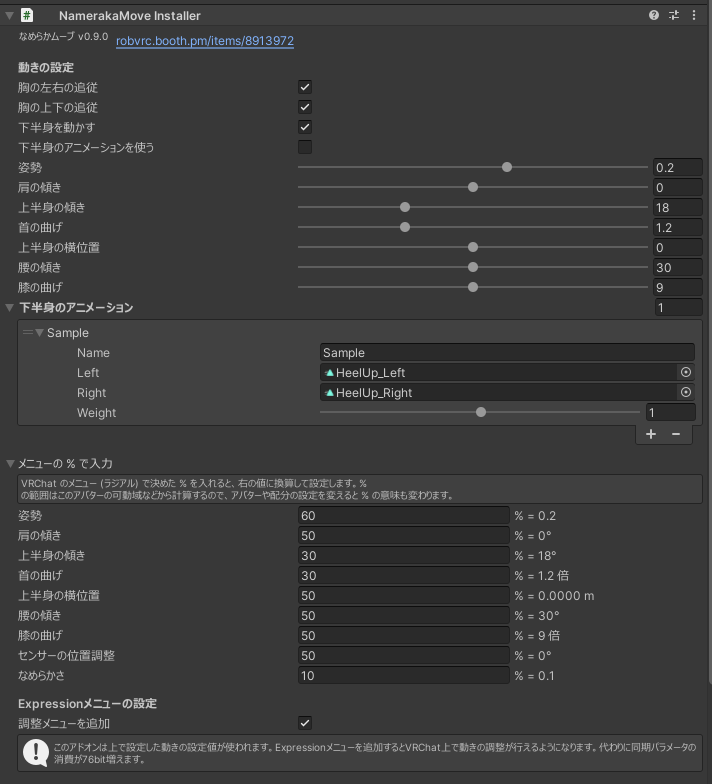
Enter as Menu %
Enter the % you chose on a radial in the VRChat menu as-is, and it is converted to an angle or other value and entered into "Motion". Use it when you want the values you found in the menu to become the avatar's defaults.
Expression Menu
Add Tuning Menu
Adds Body Parts, Motion and Sensor to the Expression menu so you can adjust the motion inside VRChat.
| ON (default) | OFF | |
|---|---|---|
| Expression menu | Enabled, Body Parts, Motion, Sensor, Reset | Enabled |
| Motion | Menu values | Fixed to the inspector values |
| Synced parameters | 85 bits (Trial: 25 bits) | 1 bit |
Once you find values you like in the menu, put them into the inspector with Enter as Menu %. Then turn this OFF to save synced parameters.
Sensor Settings
These are inside a foldout. The defaults work in most cases.
Max Yaw / Pitch Up / Pitch Down / Roll Degrees
When you turn your head this far, following reaches 100% (the full motion as set). Smaller values make the body move a lot with just a small head movement.
| Item | Range | Default |
|---|---|---|
| Max Yaw Degrees | 10–90° | 25° |
| Max Pitch Up Degrees | 5–90° | 20° |
| Max Pitch Down Degrees | 5–90° | 20° |
| Max Roll Degrees | 10–60° | 23.8° |
Dead Zone
The range around center in which tilting your head left or right doesn't move the body. If your body tends to lean left or right even when you stand straight, increase it a little.
Ease In
The angle over which the body motion smoothly speeds up after leaving the dead zone. Larger values start more gently. At 0, the motion starts abruptly at the edge of the dead zone.
Use Smoothing
Normally leave this ON. It is used to suppress small body jitter.
Restoring defaults
- Reset All (at the bottom of the inspector) … restores everything, including the menu and sensor settings, to the values from when you added the prefab.
- Reset Sensor Settings (inside the Sensor Settings foldout) … restores only the sensor settings.
Even if a new version changes the defaults, the values of a prefab already in your avatar don't change automatically. To use the new defaults, press Reset All in the inspector.
Lower Body Animations
You can set the leg shape for tilting your head left or right with Humanoid animation clips. They are used when Use Lower Body Animations is ON.
- Set the clips for tilting left and tilting right as one pair. If you set only one, the other side uses a left-right mirrored pose.
- Only the leg and hip rotations in the first frame of each clip are used. The upper body is not used.
- The body moves toward the pose as you tilt your head left or right.
- You can change the strength with each pair's Weight. The default is 1x, and the range is 0 to 2x.
- The current version uses only the first pair.
Two sample pairs are included (Assets/Rob_VRC/DynamicMove/SamplePoses).
- LegLift (default) … bends the knee and lifts the leg opposite to the tilted side out to the side.
- HeelUp … stands on the leg on the tilted side and raises the heel of the other foot high. To use it, replace the pair's clips with
HeelUp_Left/HeelUp_Right.